
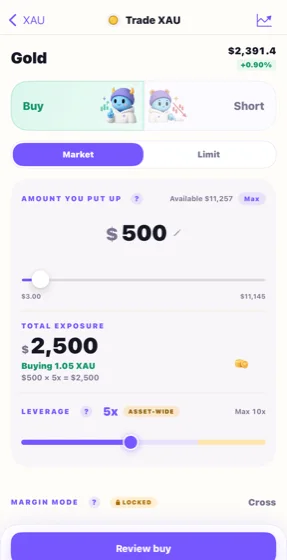
1. Open a market and choose a direction
Open Markets, select an available instrument, and use its Buy or Short action to enter the ticket. Buy opens a long direction, which gains from a rise before costs. Short gains from a fall before costs. Check the selected direction even if you entered from a preselected button.
For a clean first exercise, use a market where you have no existing position. An order in a market you already hold can change that exposure rather than create an unrelated practice position.
2. Choose Market or Limit
Market seeks a fill at available prices. Limit lets you specify a price; it may wait or never fill. Choosing Limit does not guarantee that you pay a maker fee: an immediately executable limit can take liquidity.
Keep the first exercise focused on one order type and watch what happens after submission. An order waiting for a fill belongs under open orders; a filled trade creates or changes a position.
3. Set the amount and inspect exposure
Use “Amount you put up” to set the virtual margin. Read “Total exposure” and the leverage control together. In a hypothetical example, $100 at 3× corresponds to about $300 of exposure before fees. This is a sizing illustration, not a recommendation.
Read the available balance, estimated fee, and margin mode. The leverage maximum varies by market, and the margin mode may be locked. A control for an existing position may affect that position; review any change confirmation carefully.
4. Review, then confirm the practice order
Use the review action at the bottom of the ticket, such as “Review buy” for the long direction. Check the market, direction, order type, amount, exposure, estimated costs, and liquidation information before confirming.
If something differs from your plan, go back and edit it. Confirmation submits a simulated order using the practice account. You are not buying the underlying asset or placing a real-money trade.
5. Check what the order did
After a fill, open the position and compare entry, mark price, and P&L. If a limit order is still waiting, inspect the open order instead. If submission shows an error or times out, check positions and orders before retrying so you do not unintentionally duplicate your practice exposure.
Follow the positions and funding guide to understand the result and the exit controls. For the underlying risk concepts, read margin and liquidation.
Adapted from Gobi’s in-app lessons and practice flows. Examples are educational and use virtual funds. They are not investment advice or forecasts.